 por
por Having the optimal settings in Free Fire can make a big difference in your performance. Adjusting graphics, controls, and sensitivity can improve your accuracy, response time, and overall gaming experience. Whether you’re on iOS or Android, there are specific settings that will help you gain a competitive edge and ensure smooth gameplay regardless of your device.
In this article, we provide the best Free Fire settings for both iOS and Android devices in 2024, optimizing both gameplay and graphic performance.
1. Graphics Settings: Maximum Performance Without Lag
One of the first settings you should adjust in Free Fire is the graphics. Graphic quality directly affects game performance, especially on lower-end devices. If you experience lag or FPS (frames per second) drops, it’s crucial to find a balance between visual quality and smoothness.
Recommended settings for Android and iOS devices:
- Graphics:Smooth
- This setting reduces graphic resource usage and ensures better fluidity. Ideal for players who prioritize performance over visuals.
- High Resolution:Standard
- Keeping this at «Standard» maintains good detail without overloading your device.
- Shadow:Off
- Shadows consume a lot of resources. Disabling them improves performance without affecting gameplay.
- FPS:High
- If your device supports it, choose «High» for smoother gameplay. This improves responsiveness and gives you an edge in battles.
- Texture Filter:Classic
- Keeping it on classic helps reduce GPU memory usage, ensuring smoother gameplay.
- Visual Effects:Smooth
- Set effects to smooth to avoid overloading the graphics processor. Intense effects like explosions and detailed smoke can cause FPS drops.
Tip: If you’re playing on a high-end device, you can try advanced graphic settings like «Ultra» and «High Resolution», but always make sure not to compromise the game’s smoothness.
2. Sensitivity: Settings for Accurate Aiming
Adjusting your device’s sensitivity is key to improving your aim, especially when playing in first-person view or using scopes for long-range shots. Finding the right sensitivity depends on your play style, but here’s a base setup to get started.
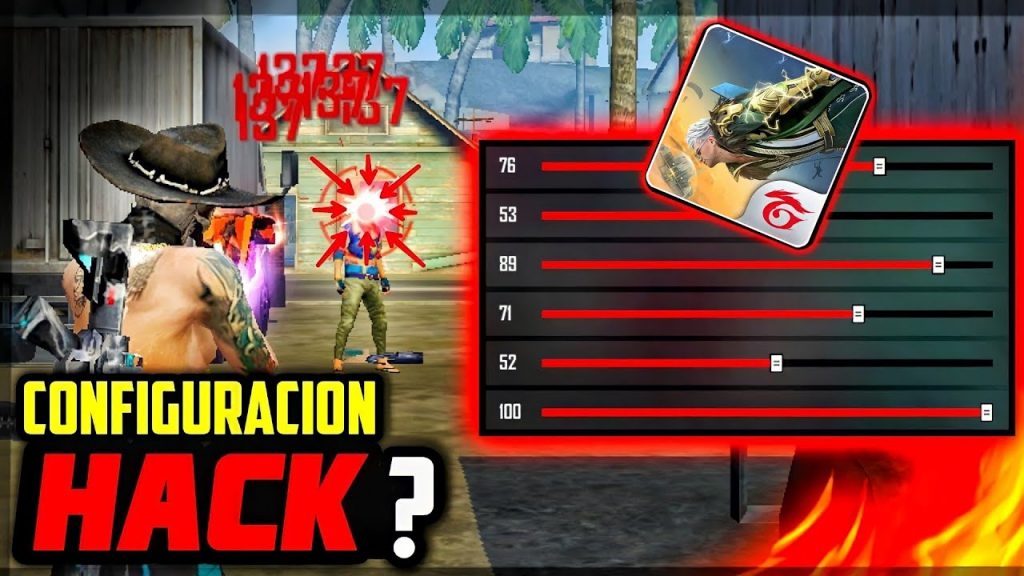
Recommended sensitivity settings:
- General:90-100
- This lets you move and aim quickly without losing control. Adjust according to your touchscreen’s sensitivity.
- Red Dot Sight:80-90
- Keep this slightly lower than General to better control your weapon in burst fire or close range.
- 2x Scope:70-85
- Ideal for mid-range weapons. Balance speed and control.
- 4x Scope:60-80
- Lower sensitivity provides greater precision at long distances—perfect for sniper rifles and distant shots.
- Sniper Scope:50-70
- Lower sensitivity here gives better control for precision shooting at long range.
- Free Look:75-90
- Allows you to move and aim while using weapons without scopes. Higher sensitivity helps with fast aiming during close-range fights.
Tip: Practice with these settings in training mode to get used to different weapon types and combat situations. Adjust values based on your preference and touchscreen responsiveness.
3. Custom Controls: Enhance Your Gameplay
Free Fire lets you customize on-screen control layout to match your play style. Changing the position and size of buttons can improve comfort and speed, giving you an edge over your opponents.
Recommended control setup:
- Shoot Button: Place it in the upper right corner, but make sure it’s easily reachable with your thumb without having to shift your hand too much.
- Crouch Button: Keep this close to the shoot button so you can quickly change posture while firing.
- Sprint Button: Position it where it doesn’t interfere with your shooting movements. Ideally near the crouch button or on the left side.
- Button Size: Adjust button sizes so they’re easy to tap without blocking your view of the battlefield.
Tip: Spend time testing different button setups in training mode to find what suits you best. You can also copy layouts from pro players or streamers and tweak them to your liking.
4. System Optimization: Boost Your Device’s Performance
Whether you’re playing on iOS or Android, optimizing your device’s performance before gaming is crucial to avoid lag and FPS drops. Here are some tips to keep your device running efficiently while gaming.
System optimization tips:
- Close background apps: Make sure to close all non-essential apps before gaming to free up RAM and prevent CPU overload.
- Turn off battery saver: Disable power saving mode or battery saver on your device. These can limit CPU performance, which is critical for demanding games like Free Fire.
- Enable Do Not Disturb: Activate Do Not Disturb mode to avoid distractions or interruptions from notifications.
- Optimize performance (Android): Some Android devices offer gaming optimization options in settings or via dedicated apps. Use these to improve fluidity and performance.
- Keep your device charged: Playing on low battery may reduce performance as the system conserves power.
Tip: If you’re using an older device, consider enabling «low graphics quality» along with system optimizations to avoid lags or FPS drops.
5. Sound Settings: Improve Your Audio Awareness
Sound plays a crucial role in Free Fire, allowing you to detect enemy footsteps, gunfire, and approaching vehicles. Adjusting your audio settings helps you better identify nearby threats and improve reaction time.
Recommended sound settings:
- Max Volume: Set the game’s overall volume to maximum to clearly hear every detail around you.
- Use Headphones: If possible, use high-quality headphones to better capture directional sounds, which is essential for anticipating enemy movements.
Tip: Some gaming headsets offer surround sound features that can further enhance immersion and help you identify sound direction more effectively.